ARPort SafetyVR · Welding
VR welding simulator
Practise preparing the welding area, choosing PPE and equipment, making a weld and finishing safely.
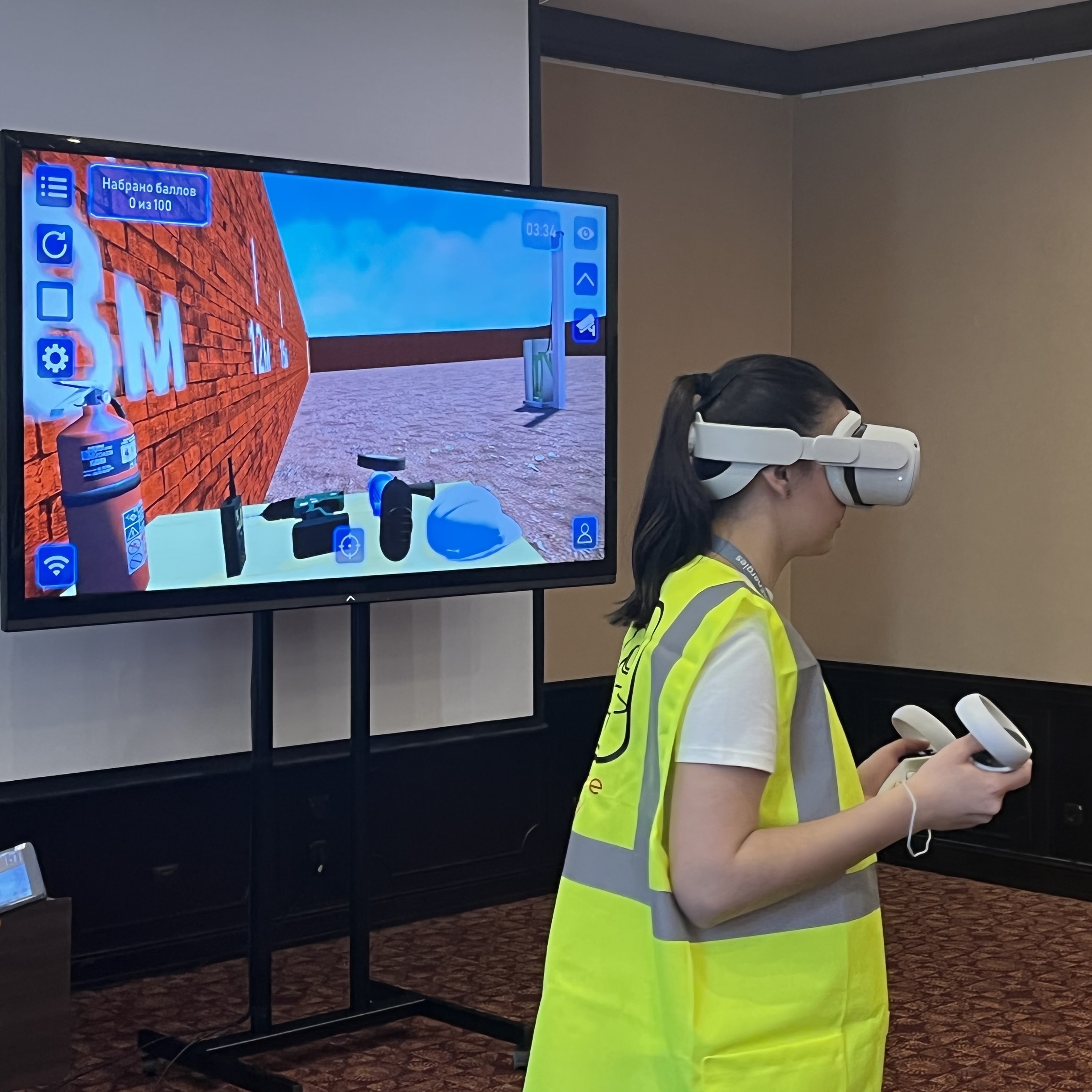
The trainee works in virtual reality while the instructor manages the session and reviews the results.

Skills trainees practise
Prepare the work area
Assess risks, cordon off the work area and prepare fire protection equipment.
Select PPE
Select eye protection, a welding helmet, gauntlets and footwear.
Check the equipment
Select a serviceable welding machine and electrode holder.
Prepare materials
Prepare the electrodes and welding surface.
Make the weld
Set up the equipment, switch on ventilation and make a weld in VR.
Finish safely
Switch off the machine, remove electrode stubs and check for signs of fire.
Tasks and situations in the simulator
Workplace preparation
Barriers, protective screens, ventilation and removal of combustible materials.
Choosing protection
Select protection for surface preparation and welding.
Equipment and electrodes
Check serviceability, prepare electrodes and connect the welding machine.
Welding and shutdown
Make a weld, disconnect the equipment and inspect the work area.
See the simulator in action
Demo recording: Russian-language simulator interface.
How a session works
Choose the simulator and settings
The instructor chooses the simulator, scenario, mode — guided learning, practice, assessment or stress — and the available task settings.
Practise skills in virtual reality
The trainee completes virtual tasks, practises safe actions and assesses risks. Guided learning and practice provide feedback, with scores for correct, incorrect and missed actions.
Review results and discuss mistakes
Results show what was done correctly, what was incorrect or missed, and what to improve. Repeat the scenario when needed.
Involve the whole group
Cast the VR view to a large screen. The group can follow the actions, discuss decisions and experience the situation alongside the trainee.
Results are saved with scores and explanations. Export the history to track progress over time.
Settings for your training goals
The instructor selects the session mode and available task settings, then reviews the results with the trainee.
Session mode
Choose guided learning, practice, assessment or stress mode to suit the session. Start with safe actions, then move on to independent practice and assessment.
Welding scenarios
Choose the full workflow, including work-area preparation, or the separate Welding Process scenario. Repeat the task to review operations where mistakes occurred.
Feedback and error review
Guided learning and practice provide scores for correct, incorrect and missed operations. Review the sequence of decisions after the session and repeat the task.
Results are saved with scores and explanations. Export session history to compare progress, and cast the VR view to involve the whole group in discussion.

Integrate VR into your safety training
Combine virtual scenarios with theory and hands-on PPE practice. Your instructor determines how tasks fit the programme, workplace conditions and applicable local requirements.
VR in your training programme
In virtual reality (VR)
Practise preparing the welding area, choosing PPE and equipment, making a weld and finishing safely.
With real equipment
Reinforce equipment-handling and welding skills through hands-on practice under an instructor's supervision.
VR and hands-on practice complement each other.
Who the simulator is for
Businesses
Prepare workers for safe welding: assess risks, select PPE, prepare equipment and finish the task safely.
Training centres
Support practical safety training: the trainee works through a VR situation, the instructor manages the session, and the group takes part through casting and review.
Universities and colleges
Prepare students for placements by practising safe actions and risk assessment. Repeat scenarios without recreating real hazards.
What you need to use the simulator
Clear space
At least 2 × 2 m (4 m²), preferably more. Extra space allows the trainee to move freely and improves immersion.
Wi-Fi
Connect the VR headset and instructor tablet to the same Wi-Fi network for device communication and casting. A smartphone hotspot is a simple option.
Internet
An installed simulator works without a constant internet connection. Internet is needed for software updates and uploading session logs.
Supply options
Individual simulator
Software for your chosen VR simulator. We check hardware compatibility by model. If you need several simulators, consider a bundle.
As part of a bundle
- software for several VR simulators
- standalone VR headset
- instructor tablet — optional
A bundle costs less than buying the same simulators separately.
Simulator FAQs
Do I need a constant internet connection?
No. You can run the simulator offline. Internet is needed for software updates and uploading result logs to the cloud.
Can I use my existing VR headset?
Yes, if the model is compatible with ARPort SafetyVR. Send us the headset model and we will check compatibility.
How does a trainee know whether an action is correct?
During the session, the trainee receives score-based feedback on actions, omissions and incorrect actions.
What is saved after a session?
Scores, explanations, completion time and session history are saved. Results can be uploaded to the cloud to track progress. You can also record the session on the computer receiving the VR cast.
How can I get a quote and demo access?
Send an enquiry. We will discuss your training needs, package, pricing and demo options.
Find a solution for your training
Tell us your organisation, city, training goals and existing VR equipment. We will suggest a simulator and suitable package.
You can also request demo access.