ARPORT SAFETYVR · CARPENTRY
VR carpentry safety training simulator
Practise safe use of a handsaw and hammer, securing workpieces and inspecting tools. In VR, learners select PPE and review common mistakes that may cause injuries.

Skills learners practise
Select PPE
Choose protective equipment for the carpentry task.
Inspect tools
Check the handsaw, hammer and other tools for serviceability.
Secure the workpiece
Choose and apply the correct fixing method before working.
Work safely
Practise using a handsaw and hammer in a virtual scenario.
Prevent mistakes
Identify and correct actions that create injury risks.

Simulator preview
Explore a scene from the simulator. Request a demo to try the tasks in your preferred training language.
Request a demoHow a session works
Choose the simulator and settings
The instructor selects the simulator, scenario, mode — learning, practice, examination or stress — and available task settings.
Practise in virtual reality
Learners complete the task in a virtual scenario. In learning and practice modes, they receive feedback with scores for correct, incorrect and missed actions.
Review results and errors
After a session, review what was done correctly, what was incorrect or missed and what can be improved. Repeat the scenario when needed.
Involve the whole group
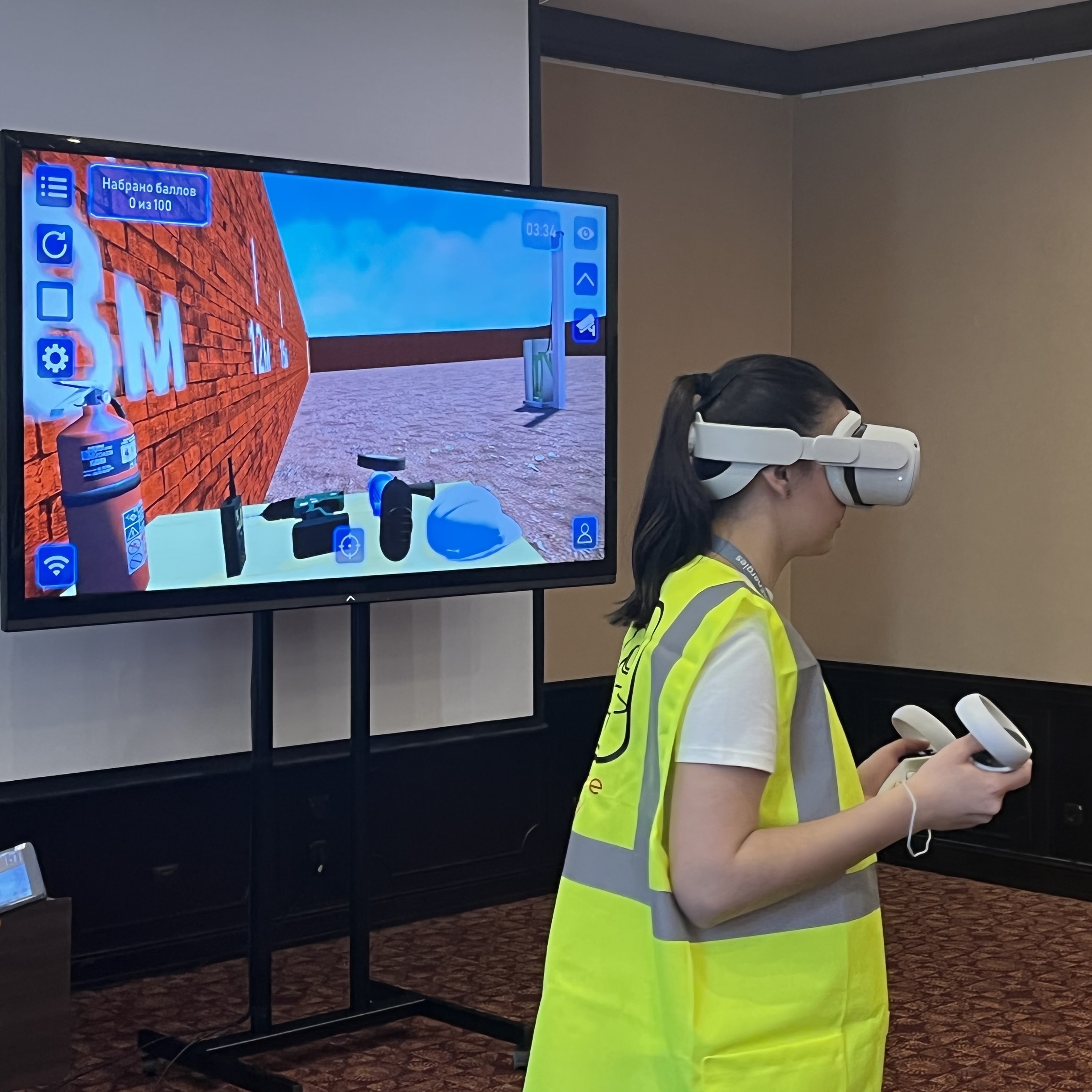
The VR view can be shown on a large screen. Other participants follow the learner’s actions, discuss decisions and work through the situation together.
Results are saved with scores and explanations. Session history can be exported and reviewed over time.
Training languages
Train in your team’s language
ARPort SafetyVR supports five training languages:
Choose the languages your learners need for your training sessions.
Discuss your training needs →
Integrate VR into your safety training
Combine virtual scenarios with theory and hands-on PPE practice. Your instructor determines how tasks fit the programme, workplace conditions and applicable local requirements.
The role of VR in your training programme
In virtual reality
Practise risk assessment, PPE selection and sequences of actions in routine and emergency scenarios. Repeat tasks and review them with an instructor.
With real equipment
Develop movement accuracy and physical woodworking skills with real workpieces and tools under an instructor’s supervision. VR complements this practice by rehearsing decisions.
Who uses the simulator?
Workplaces
Prepare employees and students for safe work: assessing hazards, inspecting equipment and choosing actions in an industrial environment.
Training centres
Practical safety training: the instructor manages the scenario, a learner practises in VR and the group joins through casting and debriefing.
Universities and colleges
Introduce technical and industrial students to hazards, equipment and safe work sequences.
What you need to use the simulator
Clear floor space
At least 2 × 2 m (4 m²), with more space recommended. Extra space allows learners to move freely and improves immersion.
Wi-Fi
The VR headset and instructor tablet must share a Wi-Fi network for device communication and casting. A smartphone hotspot can provide a simple connection.
Internet access
A permanent internet connection is not needed to run an installed simulator. Internet access is needed for software updates and uploading session result logs.
Available configurations
Individual simulator
Software for the selected VR simulator. We check equipment compatibility by model. If you need several simulators, consider a bundle.
As part of a bundle
- software for multiple VR simulators
- a standalone VR headset
- an instructor tablet as an optional extra
A bundle costs less than purchasing the same simulators individually.
First aid simulator FAQs
Do I need a permanent internet connection?
No. Running a session does not require internet access. A connection is needed for simulator software updates and uploading result logs to the cloud.
Can I use my existing VR headset?
Yes, if the model is compatible with ARPort SafetyVR. Send us the headset model and we will check compatibility.
How do learners know whether their actions are correct?
During learning and practice, learners receive feedback through scores for actions, missed actions and incorrect actions.
What is saved after a session?
Scores and explanations for actions and missed actions, session times and history are saved. Results can be uploaded to the cloud and reviewed over time. A session video can also be recorded on the computer used to display the shared VR view.
How can I get a quote and demo access?
Send an enquiry. We will discuss your training needs, configuration, pricing and demo availability.